Client Area Setup
First enable Auto SSL in the 12SSL Client Area and copy the ACME details.
1. Open the Auto SSL Product
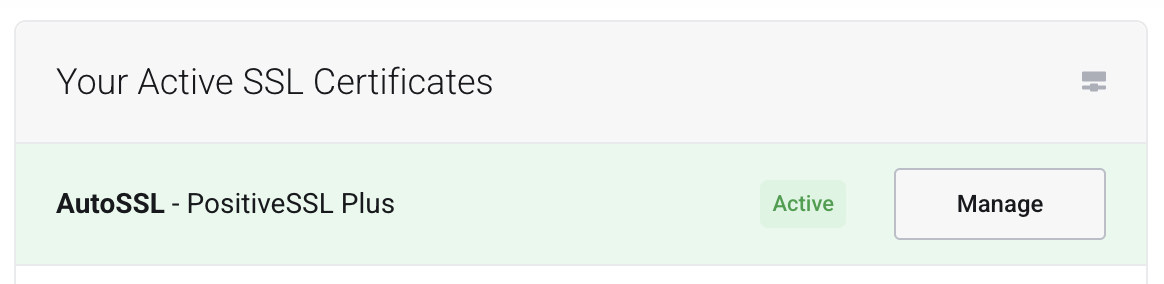
In Your Active SSL Certificates, find AutoSSL - PositiveSSL Plus.
Click Manage.
2. Start Configuration
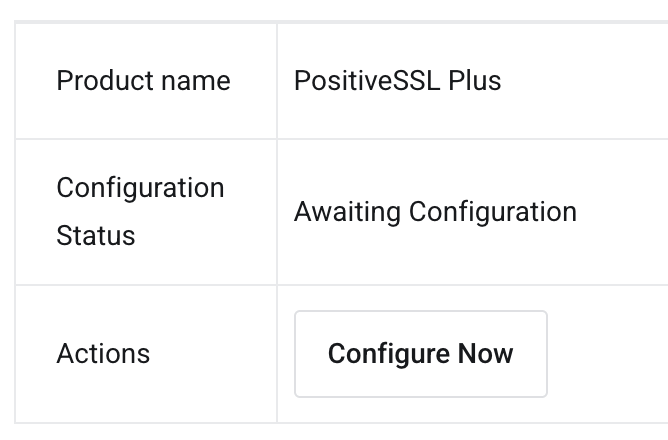
If the status is Awaiting Configuration, click Configure Now.
3. Add Domains
Enter the domains in Single Domains.
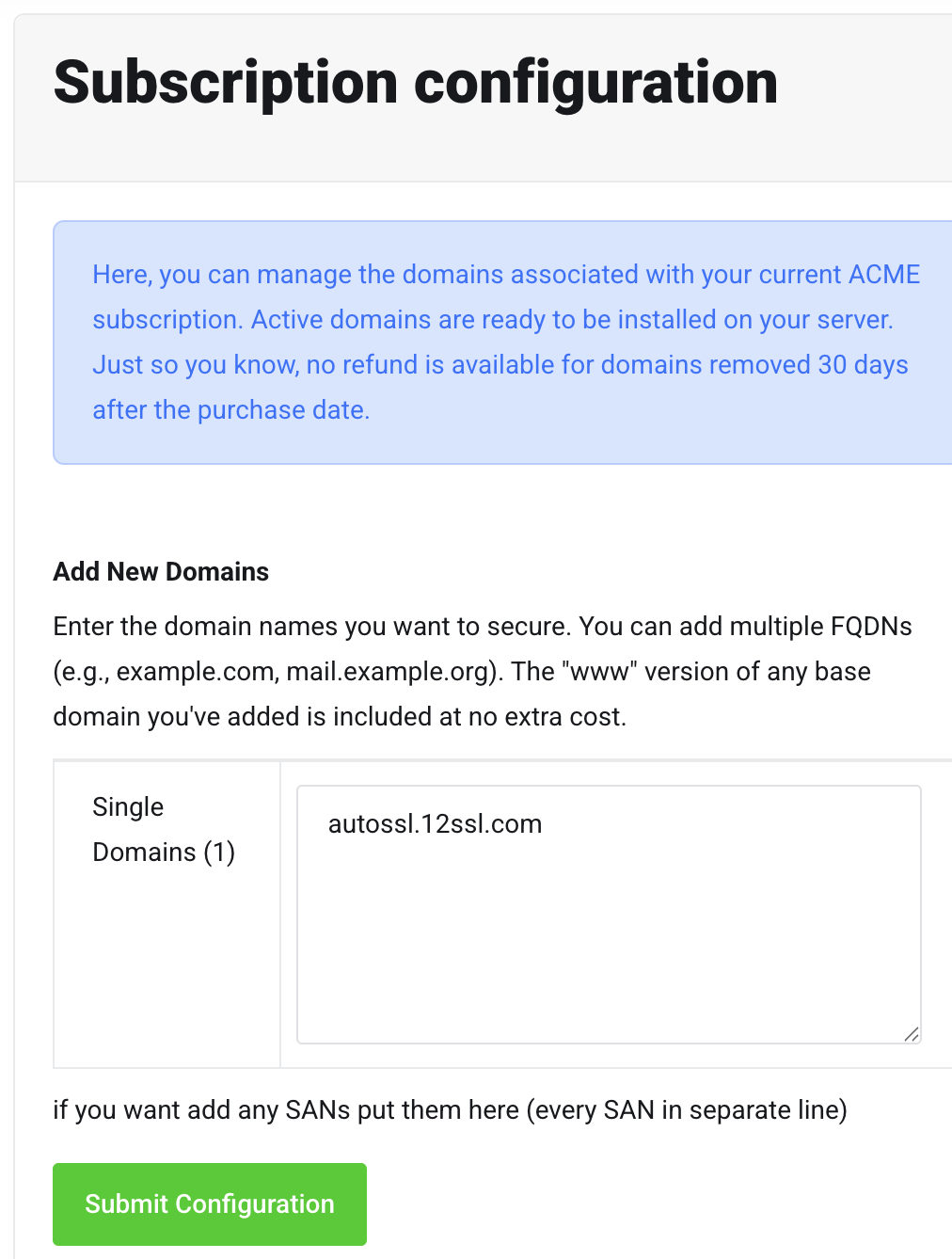
Use one domain per line.
Click Submit Configuration.
4. Wait for Active Status
After submission, the status may show Pending.

Wait for processing. If it does not change, check the domain and DNS.
5. Copy ACME Details
When the status becomes Active, the page will show:
- ACME account ID
- EAB MAC ID
- EAB MAC key
- Server URL
WARNING
The EAB MAC key is sensitive. Do not share it publicly.
The next commands use these values:
bash
export ACME_SERVER="your Server URL"
export EAB_KID="your EAB MAC ID"
export EAB_HMAC_KEY="your EAB MAC key"
export EMAIL="admin@example.com"
export DOMAIN="example.com"
Next, choose your server environment: